Part 1
Set up your bot
One-time path from zero to a live Admin Dashboard.
Before you start
- 1@BotFather → /newbot → copy the bot token.
- 2Get your numeric Telegram ID from @userinfobot.
- 3Optional: brand name for photo watermarks.
Go live
- 4Sign up at stakerhq.io/signup.
- 5Complete the Setup Wizard (token + your Telegram ID).
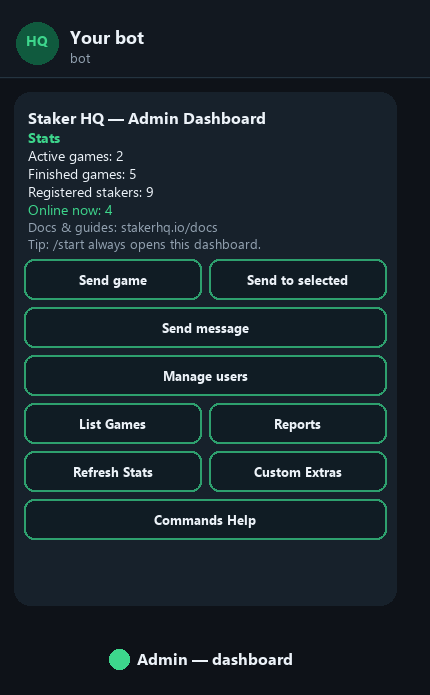
- 6Open your bot → send /start → Admin Dashboard.
Recommended: slash menu
@BotFather → /setcommands → select your bot → paste:
dashboard - Open your dashboard
Part 2
Send a game — including picture only
Games are photos. Caption is optional. A picture alone is enough to create and send a game.
Fastest method — drop a picture
- Open your bot chat (as admin).
- Send any photo / screenshot into the chat — no buttons required.
- The bot creates the game and sends it to all online stakers immediately.
This is the dashboard “Quick tip”: drop a screenshot → instant send to everyone online.
Using the button
- /dashboard → Send game
- Attach a photo when prompted
- Optional caption text (pick notes, etc.)
- Game goes to all online stakers
Send to selected = same flow, then pick recipients.
Optional pool target
Put /t 1000 anywhere in the caption to set a stake total.
- With /t — stakers see a live progress bar
- Picture only / no /t — still a valid game; you see staked totals; stakers do not see a bar until you Set Total later
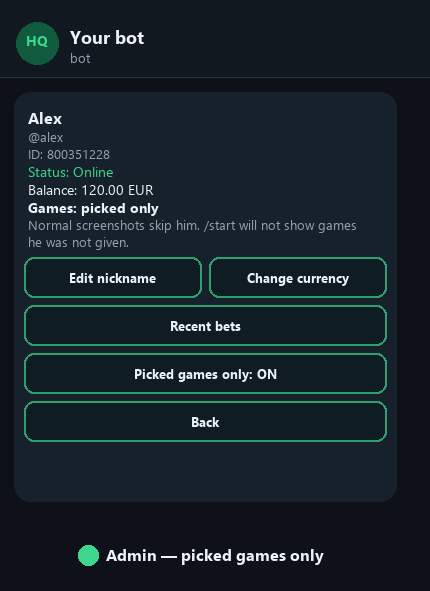
Send some games to one person, not all
One switch. He stays in the same group. Games you skip never appear when he taps /start, and he does not get the later picks on those games.
- 1Manage users → tap him → Picked games only.
- 2A normal screenshot skips him. The confirmation names who was left out.
- 3When he should see that game: put /in in the caption, or tap Send to picked on the Game Analytics widget message.
What stakers do after you send
Online stakers receive the card → Subscribe → Enter Bet with stake + odds (e.g. 400 4). Market is not asked. Multiple bets allowed.
Part 3
Onboard people (preferred)
They find the bot and request access — cleaner than collecting IDs.
Recommended workflow
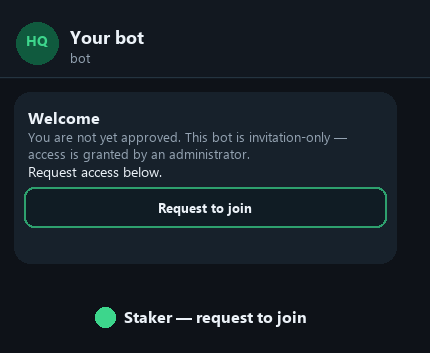
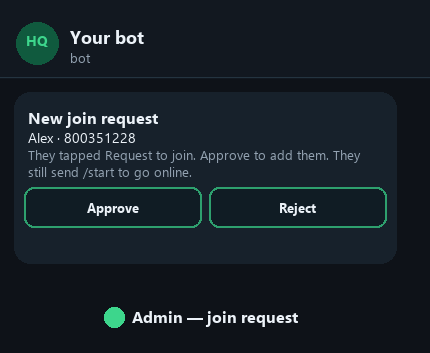
Share t.me/YourBotUsername → they tap Start → Request to join → you Approve. No ID hunting. No Forward Privacy issues.
Message to send them
1. Tap Start
2. Tap Request to join
3. After approval, send /start to go online
What you do
- 1You get New join request (name + ID).
- 2Tap Approve or Reject.
- 3Or: /dashboard → Manage users → Pending Requests.
- 4Tell them to /start after approval.
Fallback — manual Add user
Manage users → Manage all users → Add user → paste numeric ID or forward a message. Prefer Request to join when Forward Privacy hides IDs.
Part 4
Green & red circles — what they mean
The same colours are used in different menus. Context matters.
| Where | 🟢 Green | 🔴 Red / ⚫ |
|---|---|---|
| Staker list / profile | Online (receives new games) | ⚫ Offline (does not receive new games) |
| Send message · recipients | User is online | User is offline |
| Manage additional admins | Is an admin | Not an admin — tap to promote |
| Manage Superusers | Is a superuser (auto-gets games) | Not a superuser |
| Game · Add / Remove subscriber | Subscribed to that game | Not subscribed |
| Staker’s own chat | “You’re online” | “You’re offline” |
Dashboard stats
Admin home shows 🟢 Online now — count of stakers who sent /start and have not gone offline. Only those users receive a new photo-game by default.
Part 5
Manage stakers
Path: /dashboard → Manage users.
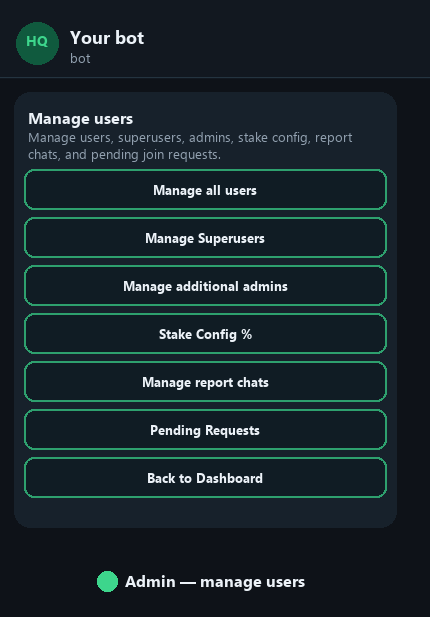
Manage users menu
Stakers list
Each row shows online status, nickname, ID, and balance.
- 🟢 = online · ⚫ = offline
- ⭐ = superuser · 👑 = admin
- Tap a name → open profile
- Add user / Remove user at the bottom
Staker profile (tap a name)
- Status, balance, currency, bet count
- Edit nickname
- Change currency
- Recent bets
- Balance adjust → web dashboard link
Removing a staker
Manage all users → Remove user → send their ID. Their bot messages for games are cleared. Prefer Request-to-join for adding people whenever possible.
Part 6
Add another admin
The Setup Wizard stores one primary admin. Teammates are added in the bot.
Steps
- 1Person must already be a registered staker (Request to join → Approve, or Add user).
- 2/dashboard → Manage users → Manage additional admins.
- 3You see every registered user with a colour: 🟢 = already admin · 🔴 = not admin.
- 4Tap a 🔴 name to promote them. Tap a 🟢 name to remove admin (except the primary env admin, which stays).
- 5They send /start — they get the Admin Dashboard instead of the staker home.
What extra admins can do
Send games, Game Analytics widget, manage users, settle games — full Telegram bot powers.
What they cannot do
Log into the web dashboard. Only the platform account owner can.
Part 7
Stake formulas (split-stake & profit-share)
Each staker has a formula that decides how wins and losses move their balance. Balance = running amount that staker owes the admin (tracked for you).
Default (every new staker)
Split-stake · 50% — staker’s share is 50%, admin’s share is 50%. You only change this if you want a different deal for that person.
⚖️ Split-stake
Default · 50%
Staker and admin split both the stake risk and the profit by the percentage you set (the number is the staker’s share).
Example · 50% · stake 100 @ 2.00
Win (profit 100): staker keeps 50 · admin balance +50
Lose: admin balance −50 (admin’s half of the stake)
Example · 30% — staker share 30%, admin 70%
📈 Profit-share
Optional · default 20% if chosen
Staker risks nothing of their own capital in the formula. On a win they receive a % of the profit. You set that % (default 20% when you switch them to this type).
Example · 20% · stake 100 @ 2.00
Win (profit 100): staker profit 20 · admin balance +80
Lose: admin balance −100 (full stake on the book)
How to change it
- 1/dashboard → Manage users → Stake Config %.
- 2Tap the staker (list shows current type, e.g. “Split-stake 50%”).
- 3Choose Profit-share or Split-stake.
- 4Send the percentage as a number: 50 for 50% split, or 20 for 20% profit-share. Use /cancel to abort.
Switching type applies defaults first (split 50% or profit 20%), then your typed % overwrites that value.
When to use which
- Split-stake — default for most stakers who share risk and profit.
- Profit-share — when the staker should not take stake risk in the formula and only takes a cut of wins.
Part 8
Game Analytics widget
The live control message for each game. Opens automatically when you send a game, or via List Games.
Button layout
- Send Reply · Set Total / Edit Total
- Ready · Waiting
- Stop · Cancel
- Enough · Skip
- Refresh · Manage
- Finish Game → Won / Lost
When to use broadcasts
| Waiting | Still collecting |
| Ready | About to go |
| Enough | Stop staking — pool full enough |
| Stop | Hard stop |
| Cancel | Scratch / cancel |
| Skip | Skip this update |
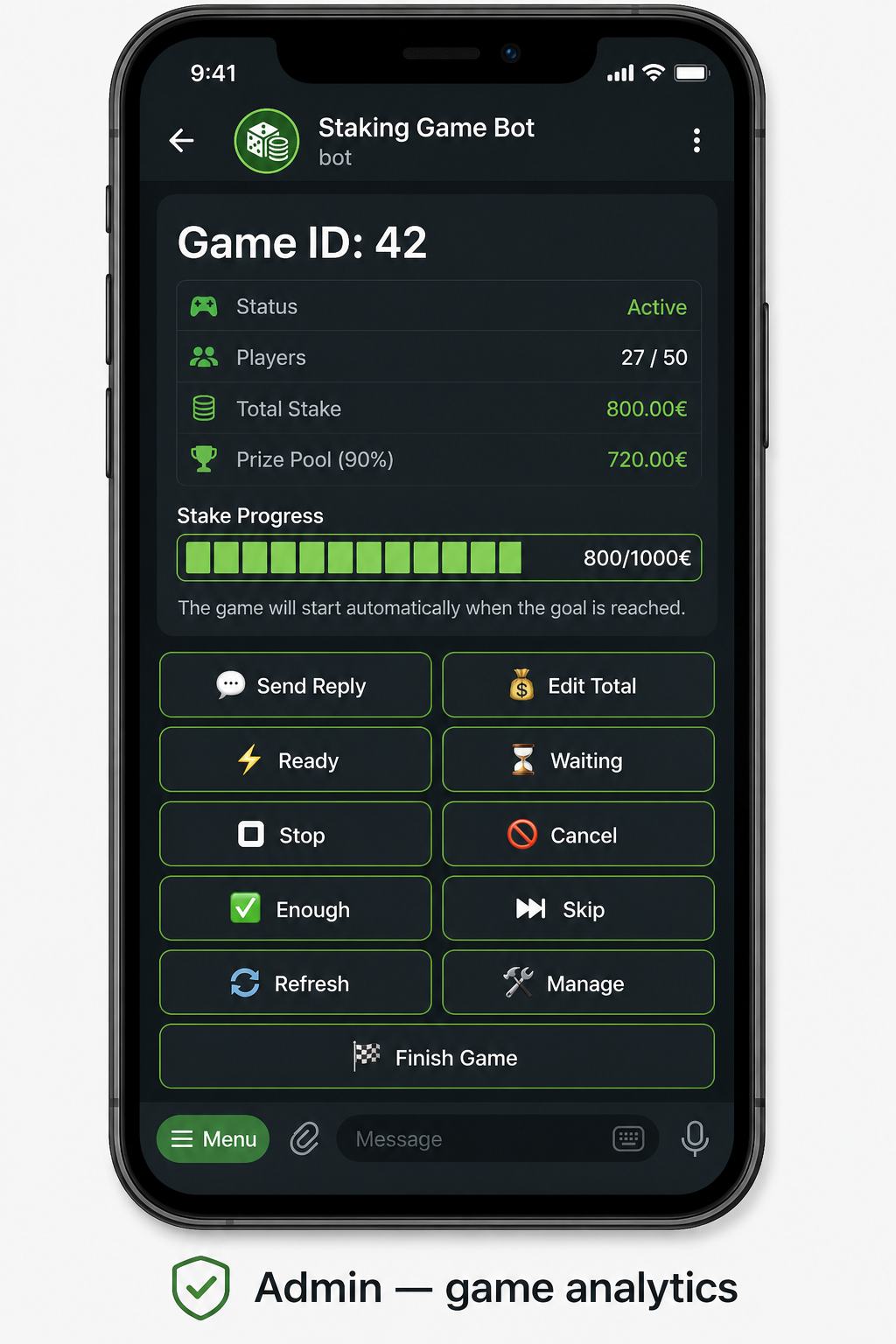
Totals & Send Report
- You always see running stake totals. Stakers see a bar only after Set Total / /t.
- Overshoot past the target is allowed.
- Send Report (staker side) opens the admin who submitted that game (then report contact, then primary).
Part 9
Web dashboard
Account owner only — stakerhq.io/login.
Volume, W/L, unsettled, bot status.
Table, CSV, deposit/withdraw, bet edits.
Full ledger + filters.
Photos, subscribers, mark Won/Lost.
VIP Forwarding, Informer Split.
Restart bot, watermark, password.
Part 10
Custom features
Stake totals
Always onOptional pool bar via caption /t 1000 or Set/Edit Total. Enough when full. Overshoot OK.
VIP Forwarding
OptionalEnable in Custom Features → VIP. Reply to a game with pick + /f (e.g. away -1.5 /f).
Informer Split
OptionalEnable in Custom Features. After send, enter informer stake X and workers cover Y (or Skip).
Superusers
Not the same as VIP Forwarding. Auto-receive all games without Subscribe. Toggle 🟢/🔴 under Manage Superusers.
Quick reference
Cheat sheet
Admin commands
Worked examples
Picked games only → normal drops skip him → /in or Send to picked when he should see it.
Drop screenshot in bot → online stakers get it → they Enter Bet.
Share link → Request to join → Approve → they /start.
Manage additional admins → tap 🔴 → they /start.
Stake Config % → user → Split-stake → send e.g. 40.
Stakers online but not getting games? ▾
They must be 🟢 online (/start). Confirm they are approved in Manage all users. Superusers auto-get games; others must Subscribe for updates.
What is the default stake deal? ▾
Split-stake 50/50. Change per user under Stake Config %.
Can I send a game with no caption? ▾
Yes. Picture alone is enough — drop it in the admin chat or use Send game and attach a photo.
Direct link: stakerhq.io/docs/job-aids/admin · Staker guide: /docs/job-aids/staker · Docs: /docs